Introduction
In today’s fast-paced digital world, businesses can’t afford to miss customer interactions. Speed, personalization, and automation are the key drivers of success. That’s where WhatsApp Business API comes into play — and more importantly, how you use it.
One of the most powerful features of WhatsApp API is Message Templates. When used strategically through platforms like Campaign Plus, these templates can dramatically increase your response rates, customer engagement, and conversions.
In this blog, we’ll explore high-performing WhatsApp API message templates, real-world examples, and expert tips to help you maximize your ROI using Campaign Plus.
What Are WhatsApp API Message Templates?
WhatsApp API message templates are pre-approved message formats that businesses can use to initiate conversations with customers.
Unlike regular messages, these templates:
- Require WhatsApp approval
- Are used for outbound communication
- Ensure compliance and prevent spam
- Maintain high delivery rates
With Campaign Plus, you can easily create, manage, and optimize these templates for different campaigns.
Why Message Templates Matter for Conversions
Let’s be real — not every message converts. But the right message, at the right time, with the right intent? That’s where the magic happens.
Benefits:
- ⚡ Instant communication
- 🎯 Personalized engagement
- 🔁 Automated follow-ups
- 📈 Higher open rates (up to 98%)
- 💰 Increased sales conversions
Using Campaign Plus, you can automate your entire funnel using smart templates.
Types of WhatsApp Message Templates
1. Welcome Messages
First impressions matter.
Example:
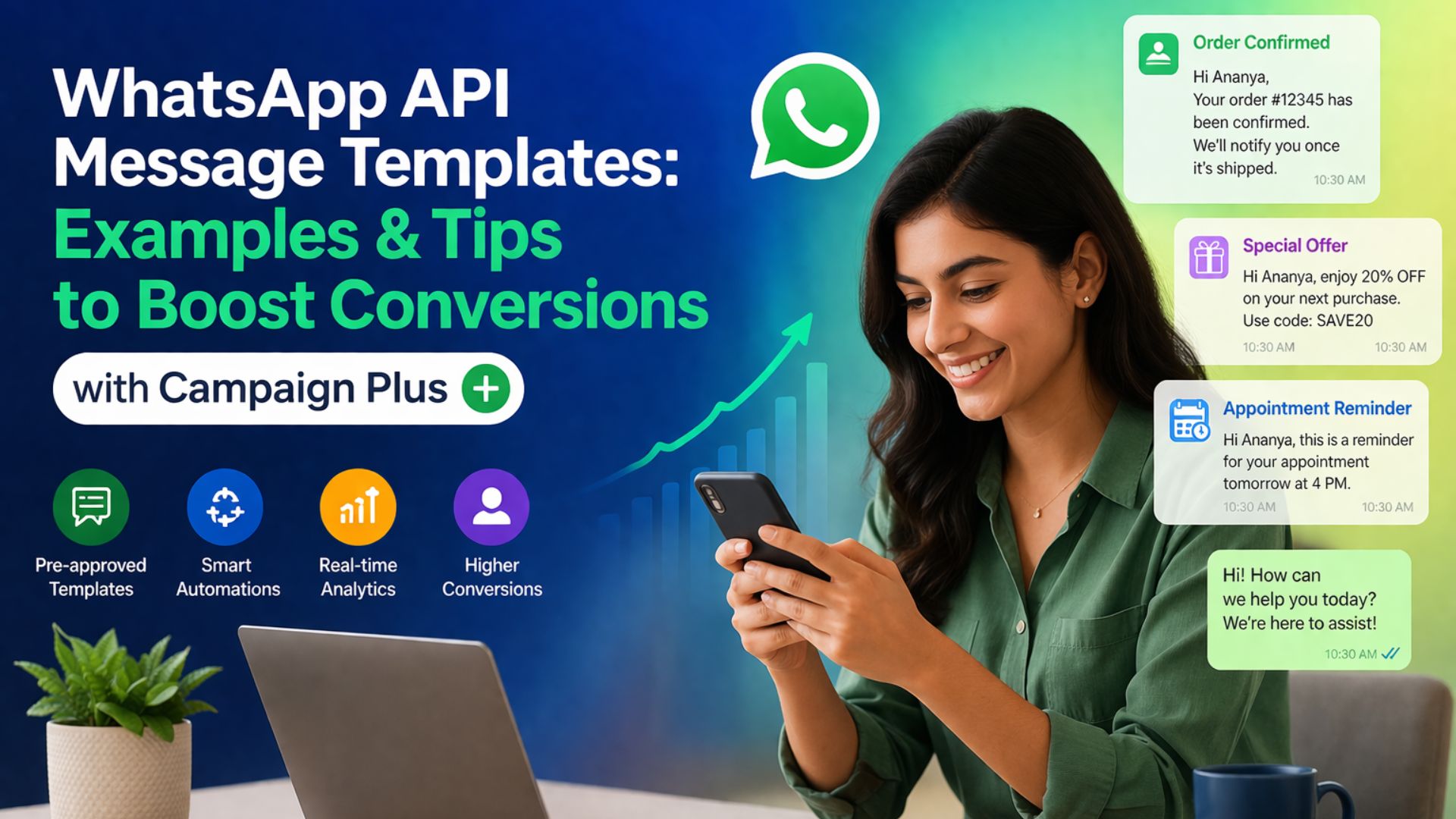
“Hi {{name}}, welcome to our service! 🎉 We’re excited to have you on board. Let us know how we can help you today.”
2. Promotional Messages
Perfect for offers and campaigns.
Example:
“🔥 Exclusive Offer for You! Get 20% OFF on your first purchase. Use code: SAVE20. Limited time only!”
3. Reminder Messages
Reduce no-shows and increase conversions.
Example:
“Hi {{name}}, just a reminder about your appointment tomorrow at 4 PM. See you soon!”
4. Order Confirmation Messages
Keep customers informed.
Example:
“✅ Your order #12345 has been confirmed! We’ll notify you once it’s shipped.”
5. Abandoned Cart Messages
Recover lost sales.
Example:
“Hey {{name}}, you left something in your cart 🛒 Complete your purchase now and enjoy an extra 10% OFF!”
6. Feedback & Review Messages
Build trust and credibility.
Example:
“We’d love your feedback! ⭐ How was your experience with us? Your opinion matters.”
How Campaign Plus Enhances Message Templates
Campaign Plus is not just another WhatsApp API tool — it’s a complete automation and conversion platform.
Key Features:
🚀 1. Easy Template Creation
Design templates with a simple interface without technical knowledge.
🎯 2. Smart Personalization
Insert dynamic fields like name, location, purchase history.
🔁 3. Automated Campaign Flows
Create full customer journeys — from lead to conversion.
📊 4. Analytics & Insights
Track delivery, open rates, and conversions in real time.
🔗 5. CRM Integration
Connect your leads and automate follow-ups seamlessly.
Best Practices for High-Converting Templates
1. Keep It Short & Clear
Avoid long messages. Get straight to the point.
2. Use Personalization
“Hi {{name}}” performs way better than generic messages.
3. Add a Strong CTA
Tell users exactly what to do next:
- Buy Now
- Book Appointment
- Claim Offer
4. Create Urgency
Limited-time offers boost conversions.
Example:
“Only 24 hours left ⏳ Don’t miss out!”
5. Use Emojis Smartly
Make messages more engaging but don’t overdo it.
6. Test & Optimize
Use Campaign Plus analytics to test:
- Message formats
- CTA placement
- Timing
Real Campaign Flow Example Using Campaign Plus
Step 1: Lead Capture
User fills a form or clicks an ad
Step 2: Welcome Message
Instant automated message sent
Step 3: Offer Message
Send a personalized discount
Step 4: Reminder
Follow up if no response
Step 5: Conversion
User completes purchase
Step 6: Feedback
Collect review post-purchase
This entire flow can be automated inside Campaign Plus.
Advanced Strategies to Boost Conversions
🔥 1. Drip Campaigns
Send messages in sequence over time.
🎯 2. Segmentation
Target users based on:
- Behavior
- Location
- Interests
📲 3. Click-to-WhatsApp Ads
Run ads that directly open WhatsApp chat.
🤖 4. Chatbot Integration
Automate conversations with AI responses.
🔁 5. Retargeting Campaigns
Re-engage inactive users with new offers.
Common Mistakes to Avoid
❌ Sending too many messages
❌ Ignoring personalization
❌ Weak call-to-action
❌ Not analyzing performance
❌ Using generic templates
Avoid these mistakes to get maximum ROI.
Why Businesses Choose Campaign Plus
- Easy to use
- High delivery success rate
- Advanced automation
- Scalable for all business sizes
- Proven results in lead conversion
Campaign Plus is designed specifically to help businesses grow faster using WhatsApp automation.
Future of WhatsApp Marketing
WhatsApp is becoming the #1 communication channel for businesses. With increasing competition, automation tools like Campaign Plus will be essential.
Businesses that adopt early will:
- Capture more leads
- Build stronger relationships
- Increase revenue
Conclusion
WhatsApp API message templates are not just messages — they are powerful tools to drive engagement, build trust, and increase conversions.
When combined with a smart platform like Campaign Plus, you can:
- Automate your marketing
- Personalize customer journeys
- Scale your business effortlessly
If you want to stay ahead in the competitive market, it’s time to leverage WhatsApp automation with Campaign Plus.
Start your journey today with Trending Bulb and take your business growth to the next level with Step4Growth 🚀